
2d-assets-mcp




An MCP (Model Context Protocol) server that generates advanced mock 2D PNG assets for games prototypes — directly from any MCP-compatible AI client such as Claude Desktop.
This MCP is engine-agnostic and works with any game engine that supports PNG import:
- Godot
- Unity
- Unreal Engine
- GameMaker
- Construct
- RPG Maker
- And many more...
Create placeholder sprites, UI elements, health bars, spritesheets, and more with full support for gradients, patterns, transparency, text rotation, and auto-scaling — all without opening an image editor.
Each generated PNG embeds rich JSON metadata (dimensions, color, shape, description) directly in its EXIF data, so AI models without vision can still understand what an asset contains.
Features
- Single asset generation — one tool call, one PNG, full visual configuration
- Batch + spritesheet mode — generate multiple assets or composite them into a single animation-strip spritesheet in one request
- Rich visual options — solid fills, linear/radial gradients, stripe/dot/grid pattern overlays, rounded corners, circles, opacity, and border control
- Progress/health bar fills —
fillPercent+trackColorfor partially-filled assets - Auto-scaling text — labels fit the asset; override with explicit
fontSizeif needed - Embedded JSON metadata — readable back via
read_image_metadatawithout loading image pixels, ideal for non-vision AI workflows - Filename dimensions — output files are named
player_idle_128x128.pngautomatically to help models with no vision know the dimensions when using the asset
Generated Assets Examples
Here are some example assets generated by this MCP server:
Character Sprites & Animations
Hero Idle Animation (4 frames, 532×136)
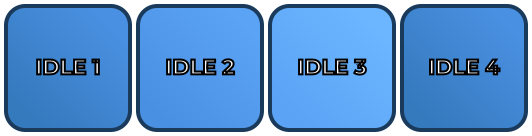
4-frame idle animation spritesheet with breathing effect and progressive blue shades
UI Elements
Attack Button (128×48)
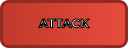
Button with red gradient, rounded corners, and "ATTACK" label
Health Bar (200×24)

Health bar at 75% fill with green color and dark gray track
Game Items
Gold Coin (32×32)

Circular coin with radial gradient, dot pattern overlay, and "COIN" label
Animation Spritesheets
Player Run Cycle (4 frames, 276×72)
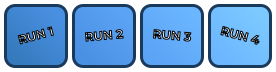
4-frame run animation spritesheet with progressive blue shades
Tools Reference
This MCP server provides 3 tools for generating and reading 2D asset metadata.
1. generate_mock_asset
Generates a single PNG asset and writes it to disk. Supports gradients, patterns, transparency, text rotation, and embedded metadata.
Parameters (click to expand)
Required parameters
| Parameter | Type | Description |
|---|---|---|
filename | string | Output filename, e.g. player_idle.png |
directory | string | Absolute path to the output folder (created if missing) |
text | string | Label rendered on the asset |
color | string | Background hex color, e.g. #FF5733 |
Optional parameters — shape & size
| Parameter | Type | Default | Description |
|---|---|---|---|
width | number | 128 | Width in pixels |
height | number | 128 | Height in pixels |
shape | rectangle | rounded-rectangle | circle | rectangle | Geometric shape |
opacity | number 0–1 | 1.0 | Background opacity |
strokeColor | string | #000000 | Border hex color |
strokeWidth | number | 4 | Border width in px; 0 removes the border |
Optional parameters — fill & gradient
| Parameter | Type | Default | Description |
|---|---|---|---|
fillMode | solid | linear-gradient | radial-gradient | solid | Background fill type |
secondaryColor | string | auto-derived | Second gradient stop; auto-shaded from color if omitted |
gradientAngle | number | 45 | Angle in degrees for linear gradients (ignored for radial) |
Optional parameters — progress/health bar
| Parameter | Type | Default | Description |
|---|---|---|---|
fillPercent | number 0–100 | 100 | How much of the asset is filled (left to right) |
trackColor | string | — | Color of the unfilled portion; transparent if omitted |
Optional parameters — pattern overlay
| Parameter | Type | Default | Description |
|---|---|---|---|
pattern | none | stripes | dots | grid | none | Pattern overlay type |
patternColor | string | auto-derived | Pattern color; contrast-auto if omitted |
patternOpacity | number 0–1 | 0.18 | Pattern overlay opacity |
patternScale | number ≥2 | 16 | Pattern tile size in pixels |
Optional parameters — text
| Parameter | Type | Default | Description |
|---|---|---|---|
textPosition | center | top | bottom | center | Vertical text alignment |
fontSize | number | auto-scaled | Explicit font size in px; auto-fits if omitted |
textRotation | number | 0 | Text rotation angle in degrees |
Optional parameters — metadata
| Parameter | Type | Default | Description |
|---|---|---|---|
assetDescription | string | — | Human-readable description embedded in the PNG EXIF for non-vision AI context |
Output filename format
The server automatically appends the dimensions to the filename before writing:
player_idle.png → player_idle_128x128.png
2. generate_mock_asset_batch
Generates multiple assets in one request. Supports individual PNGs or a single composed spritesheet.
Parameters (click to expand)
Required parameters
| Parameter | Type | Description |
|---|---|---|
assets | AssetConfig[] | Array of asset configs (same fields as generate_mock_asset) |
Optional parameters
| Parameter | Type | Default | Description |
|---|---|---|---|
spritesheetMode | individual | spritesheet | spritesheet | individual writes separate PNGs; spritesheet composes a single PNG |
sheetFilename | string | spritesheet.png | Output filename for the spritesheet |
sheetDirectory | string | first asset's directory | Output directory for the spritesheet |
sheetMargin | number | 8 | Outer padding around the spritesheet in pixels |
sheetSpacing | number | 8 | Gap between frames in pixels |
Spritesheet layout
All assets are arranged in a single row (traditional animation strip). Each frame cell is sized to the largest asset in the batch; smaller assets are centered within their cell. The output filename includes the total sheet dimensions:
player_run.png → player_run_648x136.png
3. read_image_metadata
Reads the JSON metadata embedded in the EXIF ImageDescription field of any PNG generated by this server. Useful for AI models that lack vision — they can understand what an asset contains without decoding the image.
Parameters (click to expand)
Required parameters
| Parameter | Type | Description |
|---|---|---|
filepath | string | Absolute path to the PNG file |
How metadata embedding works
Metadata is stored as a JSON string in the PNG's EXIF IFD0.ImageDescription field using the sharp library's withMetadata API.
Reading it back uses a deliberate bypass of standard TIFF byte-walking: instead of parsing the binary TIFF structure, the raw EXIF buffer is scanned as a UTF-8 string for the known "generator":"2d-assets-mcp" key, then the surrounding JSON object is extracted. This makes the reader immune to TIFF padding, byte-order variations, and unusual IFD layouts across different PNG writers.
Example response
{
  "generator": "2d-assets-mcp",
  "type": "asset",
  "name": "player_idle",
  "width": 128,
  "height": 128,
  "color": "#4A90E2",
  "shape": "rounded-rectangle",
  "fillMode": "linear-gradient",
  "fillPercent": 100,
  "trackColor": null,
  "pattern": "none",
  "description": "Player idle placeholder, blue rounded rectangle 128x128",
  "createdAt": "2025-01-15T10:30:00.000Z"
}
Spritesheet metadata fields (additional fields returned for spritesheet files)
{
  "generator": "2d-assets-mcp",
  "type": "spritesheet",
  "totalWidth": 648,
  "totalHeight": 136,
  "columns": 4,
  "rows": 1,
  "frameCount": 4,
  "frameWidth": 128,
  "frameHeight": 128,
  "margin": 8,
  "spacing": 8,
  "createdAt": "2025-01-15T10:30:00.000Z"
}
Usage Examples
Below are example prompts you can give Claude Desktop once the server is connected.
Single asset
"Create a 128×128 blue rounded-rectangle placeholder for my player character at
C:\Users\me\project\assets\sprites\(Windows) or/home/me/project/assets/sprites/(Linux) or/Users/me/project/assets/sprites/(macOS). Label it 'Player' and give it a radial gradient."
Health bar
"Generate a health bar PNG at 200×24 pixels, filled 65%, red fill color, dark gray track, at your project's UI folder. Call the file
health_bar.png."
Spritesheet
"Create a 4-frame run cycle spritesheet for my player. Each frame should be 64×64, different shades of blue, labeled Frame 1 through Frame 4. Save it to your project's sprites folder."
Read metadata
"Read the metadata from your project's sprites folder, file
player_idle_128x128.png."
Installation
Option 1 — Use directly with npx (no install required)
The fastest way to connect it to Claude Desktop:
{
  "mcpServers": {
    "2d-assets": {
      "command": "npx",
      "args": ["-y", "2d-assets-mcp"]
    }
  }
}
Option 2 — Manual installation with package manager (npm, pnpm, yarn)
git clone https://github.com/crony-io/2d-assets-mcp.git
cd 2d-assets-mcp

# Choose your package manager:
pnpm install   # recommended
# or
npm install
# or
yarn install

# build
pnpm run build
# or
npm run build
# or
yarn run build
Option 3 — Install globally with npm or pnpm
This project works with any Node.js package manager. Choose your preferred one:
npm
npm install -g 2d-assets-mcp
pnpm
pnpm add -g 2d-assets-mcp
Then reference the installed binary:
{
  "mcpServers": {
    "2d-assets": {
      "command": "2d-assets-mcp"
    }
  }
}
Claude Code
Add to your Claude Code MCP settings:
{
  "mcpServers": {
    "2d-assets-mcp": {
      "command": "node",
      "args": ["/absolute/path/to/2d-assets-mcp/dist/index.js"]
    }
  }
}
Devin
Add to your Devin MCP settings (mcp_config.json):
{
  "mcpServers": {
    "2d-assets-mcp": {
      "command": "node",
      "args": ["/absolute/path/to/2d-assets-mcp/dist/index.js"],
      "disabled": false
    }
  }
}
Cursor
Create .cursor/mcp.json in your project:
{
  "mcpServers": {
    "2d-assets-mcp": {
      "command": "node",
      "args": ["/absolute/path/to/2d-assets-mcp/dist/index.js"]
    }
  }
}
Claude Desktop Configuration
Open your Claude Desktop config file and add the server under mcpServers.
macOS — ~/Library/Application Support/Claude/claude_desktop_config.json
Windows — %APPDATA%\Claude\claude_desktop_config.json
Linux — ~/.config/Claude/claude_desktop_config.json
Using npx (recommended — always runs latest version)
{
  "mcpServers": {
    "2d-assets": {
      "command": "npx",
      "args": ["-y", "2d-assets-mcp"]
    }
  }
}
Using a global install
{
  "mcpServers": {
    "2d-assets": {
      "command": "2d-assets-mcp"
    }
  }
}
Development
Prerequisites
- Node.js 18 or later
- npm 9 or later or pnpm 8 or later (any package manager works)
Setup
git clone https://github.com/crony-io/2d-assets-mcp.git
cd 2d-assets-mcp
# Choose your package manager:
pnpm install   # recommended
# or
npm install
# or
yarn install
Scripts
| Command | Description |
|---|---|
npm run build / pnpm build | Compile TypeScript to dist/ |
npm run dev / pnpm dev | Run directly from source with tsx (no build needed) |
npm start / pnpm start | Run the compiled server from dist/ |
npm run typecheck / pnpm typecheck | Type-check without emitting files |
npm run check / pnpm check | Run all checks: format, lint, and typecheck |
Adding a new tool
- Create
src/tools/yourTool.tsand export aregisterYourTool(server: McpServer)function - Import and call it in
src/server.ts - Add any new Zod schemas to
src/schemas.tsand types tosrc/types.ts
License
MIT — see LICENSE for full text.
Contributing
Issues and pull requests are welcome. Before opening a PR:
- Run
npm run checkorpnpm check— zero errors required - Keep new tools in their own file under
src/tools/ - Export new types from
src/types.tsand schemas fromsrc/schemas.ts - Update this README's Tools Reference section for any new or changed parameters
Server Config
{
  "mcpServers": {
    "2d-assets": {
      "args": [
        "-y",
        "2d-assets-mcp"
      ],
      "command": "npx",
      "disabled": false
    }
  }
}