

CoDesign MCP Server認証済み注目
@IMG.LY
基本情報

CoDesign MCP Server について
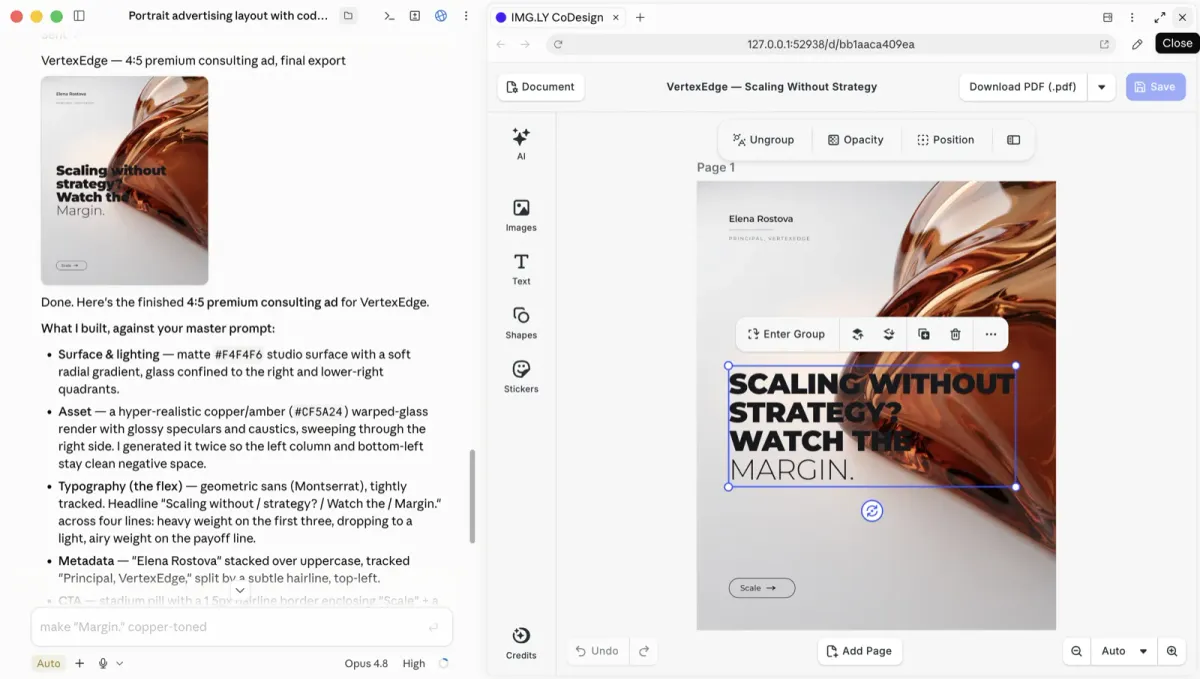
Give your AI agent a real design engine. Create, edit and export real, editable designs from Claude Code, Codex, Cursor and more.
CoDesign MCP Server の設定
以下の設定を使って、このサーバーを MCP 対応クライアントに追加してください。
{
  "mcpServers": {
    "codesign": {
      "command": "npx",
      "args": [
        "-y",
        "@imgly/codesign-mcp@latest",
        "stdio"
      ]
    }
  }
}
CoDesign MCP Server のツール
19Edit the CE.SDK canvas by running JavaScript against the live CreativeEngine, then commit the result as a new revision. ⚠ BEFORE your first `edit`, load the installed `handbook` skill; if it isn't installed, read the MCP resource `skill://codesign/handbook/SKILL.md`. It documents the design loop, the typeface schema, and the engine recipes; on cryptic errors, read `skill://codesign/handbook/quirks.md`. REQUIRED: `parent` is a revision id (returned by a previous edit), or the JSON null literal (no quotes) to start a new design. Omitting it is an error — there is no implicit 'continue from wherever'. In a fresh conversation, a request for a new design means `parent: null` — never resume a workspace design the user didn't reference. Returns: the first content part is JSON `{ revision, parent, names? }` — store `revision` so you can pass it as `parent` on the next edit. `names` lists every named block in the committed scene: those are exactly the strings `engine.design.findByName(name)` resolves in your NEXT edit, so name what you build and re-find it instead of matching copy. When the edit changed the scene, the result also ends with a downscaled render of the (first) changed page — verify your work from it instead of spending a `preview` call. `preview` remains required for full-size judging (the judge loop) and multi-page review; set `render: false` to skip the image on read-only/diagnostic edits. `code` return contract (STRICT): return `undefined` (no message back), `{ type: "text", text }`, `{ type: "image", data: "<base64>", mimeType }`, or an array of those. Anything else (raw strings, Blobs, plain objects) is rejected. DIALECT (enforced): mutations go through `engine.design` (create/build/setProps/…). Code that mutates via engine.block.* is rejected before execution with the equivalent calls; `// engine.block: <reason>` opts out for calls the facade lacks. `code` scope: `engine` (with `engine.design`), plus `findText(copy)` / `findAllText(copy)` for reaching a block by its text. Use them instead of comparing text strings with `===` — the copy on the page routinely carries a trailing space or an NBSP (before a `€`/`%`), which is what makes hand-rolled lookups throw. Matching folds those space variants and trims; a miss lists the copy actually on the page. Dirty-on-throw: if your `code` throws, the engine slot is marked dirty and the next `edit` pays one engine reload (regardless of `parent`). Do not catch-and-swallow errors that should propagate — let them throw so this safety contract kicks in. Optional: `title` (set on parent=null only — the design's display name) and `note` (a one-liner describing what this edit accomplished — purely descriptive, helps you re-ground after a rewind). Refused parents: if the user saved changes in the browser editor between your `parent` and the design head, this edit would discard them, so it is rejected — call `changes` to see what they did and which revision to build on.
Render blocks (almost always pages) to inline images so you can see the result. `revision` is REQUIRED — pass the revision the blocks belong to, the id `edit` returned. `blockIds` is a LIST, rendered in the order you give it: `[pageId]` for one page, `[a, b]` for a subset, or OMIT it entirely to preview every page of the design in document order. The given `revision` is loaded before rendering, so the ids always resolve against the right scene — never against a different design another agent may have loaded on a shared server. Preview several blocks at once when REVIEWING or capturing a finished design — a whole deck in one call, or just the pages a fix touched. While BUILDING a multi-page design, keep previewing each page right after you build it: batching there does not avoid the bugs, it only delays finding them. Animated or video designs (any scene mode): pass `time` (seconds along the timeline of what is rendered — the page, since a block is previewed in place on it; 0 = first frame) to render any frame as a still — use `export format=mp4` for motion. `time` applies to every block in the call, and each timed preview (and every preview of a Video-mode scene) returns `{blockId, time, duration}` JSON alongside its image; `duration` is the scrubbable range. Output is always PNG (lossless — thin lines render exactly). EACH block gets the full 0.25 megapixel budget, adjusted to its own aspect ratio — a square page renders 512×512, a 1:4 page 256×1024. There are no size or format knobs, and at most 10 blocks render per call. To SEE SMALL TYPE as it is actually set — legal copy, a caption, a label — the simplest zoom is to pass THAT BLOCK'S id: `blockIds: [<textId>]` renders it on its page, framed, with context around it. No coordinates needed. For a tighter or arbitrary crop, pass `region`: a rectangle `{x, y, width, height}` with ONE id in `blockIds`. Its numbers are the design's own coordinates — what `engine.block.getGlobalBoundingBoxX/Y/Width/Height` return inside `edit` — NOT pixels of a preview image you already have. Either way the crop is rendered into the same budget, so a smaller rectangle means bigger pixels, and it is never enlarged past the design's own resolution. Previewing a block that is NOT a page renders it IN PLACE on its page — background and neighbours included — so you score what is actually on the page. `export` still produces the block alone when you need it with an alpha channel. For native-resolution certainty, `export` the page and open its `httpUrl`.
Export a revision to a final deliverable — `format` picks it: `pdf` (print PDF), `png`/`jpeg`/`webp` (image), `svg` (vector SVG), `pdfx` (print-ready PDF/X), `html` (responsive HTML5), `mp4` (video), `wav`/`m4a` (audio), `imgly` (editable design file). Renders `blockId` — or the whole document when `blockId` is omitted — and writes the result into the workspace under `exports/<shard>/<rev>/` (revision-pinned, deterministic). Returns JSON: `{ uri, httpUrl, bytes, format, revision }` (plus `path` when you pass `outPath`). `uri` (a `workspace://` URI) is the durable handle. `httpUrl` is a fetch link tied to this process — fetch it to download the bytes to disk, or hand it to the user. `outPath` (optional, absolute path including the filename): ALSO write the artifact to that local path — the workspace copy is still written, and the response then carries `path`. Use it when the file is wanted on disk, and always when your environment cannot fetch localhost URLs (sandboxed harnesses, e.g. Claude Cowork — target your session's outputs folder there). `format=svg` is the engine's vector export: text is outlined into paths (renders identically everywhere, but is not editable text in the SVG), and raster images are embedded in the file at source resolution — an SVG of a photo-heavy design can be much larger than its source images. `format=imgly` writes a portable, self-contained `.imgly` design file (scene + all asset bytes bundled) — the inverse of `import`, and the only format that stays editable. Whole-design only: `blockId` is not accepted. Every `edit` already auto-persists to the workspace, so you never need this to keep your work — use it to take an editable copy OUT: hand it to a human, back it up, move it between servers. `format=pdfx` runs the print PDF through a PDF/X conversion (Ghostscript): CMYK with an embedded ICC profile and PDF/X conformance markers, ready for a print shop. Tune it via the optional `pdfx` object — conformance standard (X-4 default / X-3), output profile (fogra39/gracol/srgb/custom), transparency flattening, OutputIntent metadata. Conversion adds a few seconds. `format=html` renders ONE page (`blockId` required — pass a page id) to responsive HTML5. Default is a single self-contained `.html` (assets inlined; animated designs get a CDN GSAP player injected so the file plays as-is); `html: { assets: "external" }` delivers html + separate image/font files as one `.zip`. `format=mp4` renders the authored timeline of the block (typically a page) to an H.264 `mp4`; duration and resolution come from the scene; frame rate is `fps` (default 30). Requires the native engine (the default). Long encodes report MCP progress notifications when the client sends a progressToken. `format=wav` / `format=m4a` renders the audio mix of a page (`blockId` required, a page id): every audio block and video-fill audio on it, over the page duration. `wav` is 48 kHz stereo 32-bit float, `m4a` is AAC. To get one clip alone, export while it is the only audio on the page. Requires the native engine. Known engine issue: a clip that starts after 0 s can be placed up to 1 s late in this export (the mp4 is exact); a clip starting at 0 is exact.
Import a design FILE as a NEW design root revision — a native CE.SDK `.imgly` design file (also the legacy `.scene` and `.zip` forms); a foreign design file: Photoshop (`.psd`/`.psb`), InDesign (`.idml`), PowerPoint (`.pptx`), or PDF; or a plain image (PNG/JPEG/WebP/GIF) or SVG, which becomes a one-page design sized to the image (`format`: `"image"`/`"svg"`). The inverse of `export({ format: 'imgly' })`. To make a media file (image/font/video/audio) available for use INSIDE a design instead of becoming one, use `asset_add`. Source: `{ url }` (http/https), `{ demo }` (a design bundled with this server — ids: `"cybernews"`) or `{ path }` (absolute local file path; Local only). Archives are ingested: bundled asset bytes are extracted into the workspace as content-addressed `assets/<sha>.<ext>` files, so the loaded design is durable and behaves exactly like a natively-built one. Returns JSON `{ revision, title, format }` — continue with `edit({ parent: revision, … })`. Foreign-format imports may add `warnings` (importer notes about what did not survive — substituted fonts, unsupported features): treat them as your touch-up list — `preview` the pages, then repair with `edit`; find replacement fonts via `asset_search`. Bare scene-file loads (no bundled assets) additionally return `assets`: a classification of every referenced asset URI by scheme (`workspace` / `external` / `bundle` / `transient` / `other`). External URLs are NOT fetched; `transient` entries WILL be lost on the next save — replace or relocate them before committing further work.
List designs in the workspace. Returns an array of `{ rootRevision, title, latestLeaf, updatedAt, headOrigin?, headNote? }` sorted newest-first; the `head*` fields describe `latestLeaf`. `headOrigin: "editor"` means the last hand on that design was the user's, in the browser editor — read `headNote` (the engine-computed diff of their save) before you change anything, and build from `latestLeaf` so their work is not discarded. Use when the user asks what designs exist or wants to resume earlier work. Seeing a design here is never by itself a reason to continue it — for a new design request pass `parent: null` to `edit`.
Walk back from `revision` to the root, returning the chain (root first). Each entry has `{ revision, parent, note?, origin?, createdAt }` — `origin: "editor"` marks a revision the user saved from the browser editor. Use this to re-ground after a rewind: read the notes, pick the revision you want to continue from, pass it as `parent` to your next `edit`. Continue a prior design only when the user asked for it — never because it is the newest entry.
Check whether the user changed a design in the browser editor since you last touched it. Pass the revision you believe is current — normally the one your last `edit` returned. The reply says whether it is still the design head and lists what was written since, oldest first, with each revision's diff note and whether it came from the editor (`origin: "editor"`) or from your own `edit`. Call this before your first `edit` of a design whenever the user may have had the `view` page open: `edit` REJECTS a parent whose path to the head contains one of the user's editor saves, so this is how you find the parent to build on.
Read one revision in full: parent, note, createdAt, title (root only), and the JS code that produced it (when written via `edit`). Use this after `history` when you've picked a revision and want to know HOW it got there — the code is the precise operation; `note` is the agent's summary. Returns JSON `{ revision, parent, note?, origin?, createdAt, title?, code? }` — `origin: "editor"` marks a revision the user saved from the browser editor. `code` is omitted for revisions not produced by `edit` (e.g. future import paths). ⚠ Past code reveals the PATTERN of an edit (which APIs were called, what kind of block was targeted), NOT the block ids. Block ids are session-scoped — re-discover them in the current engine; don't replay the literal numeric ids.
Rename a design. `revision` may be any revision in the lineage; the root's title is updated. Use this when the title set at design creation no longer fits.
Record the verdict of a judge loop you have COMPLETED for a revision — the final step of the `judge` skill. Recording is a claim about work already done: never call this without having scored the axes against actual `preview` renders of this exact revision's content. `verdict: 'pass'` — every applicable axis scored ≥ 8; the design may be delivered. `verdict: 'fail'` — you are stopping with an axis below 8 (e.g. the user cut remediation short); the failure stays on record. The latest scorecard is what `export` checks: delivering a revision it does not cover (content changed since, or no scorecard at all) adds a reminder to its result. Judging again after further edits? Record a new scorecard for the re-judged revision.
Register the brief's ACCEPTANCE CHECKLIST for a design — the machine-checkable claims that must hold before the work counts as done. Do this right after intake, before the first edit: extract from the brief every required output file, every string of approved copy that must land verbatim, and note the constraints only you can check. Item kinds: - { kind: 'output', path } — a file that must exist when the design is delivered (absolute path, e.g. every variant the brief orders exported). - { kind: 'copy', text } — approved copy that must appear VERBATIM in the design's text (whitespace variants are folded before comparing; wording, case and punctuation are exact). - { kind: 'note', text } — a self-check the server cannot verify (e.g. "layout structure unchanged from master"). Kept on record; never machine-checked. Every `export` verifies the current checklist against the deliverable and lists unmet items in its result — treat an unmet item exactly like a failing test: finish the work, or re-register the checklist without the item if it is genuinely obsolete. Calling `checklist` again REPLACES the whole list for this design. Returns: { ok, itemCount, rootRevision } — or the current checklist when called with only `revision` (no items).
Get a URL the human can open to view and edit the design in CE.SDK. Returns the design's stable URL — the viewer keeps it live, re-rendering as you `edit`, so print it ONCE and don't re-emit a fresh URL every turn. Add `pin: true` for a frozen permalink to that exact revision (for 'look at exactly this' or comparing revisions). The page is a full editor; when the human clicks 'Save', their edits land as a new revision whose note carries an engine-computed change summary — continue from that revision. Pass `mode: 'motion'` for an animated or video design so the editor opens with the timeline; `mode: 'design'` opens the still-design editor. Omitted: the editor opens in the mode the human last used for this design (Design at first).
Discover the asset sources registered on the CreativeEngine and search the assets they contain. Read-only — never creates a revision. Without `sourceId`: lists every source id with its supported MIME types. With `sourceId`: returns one page of assets as JSON `{ total, currentPage, nextPage, assets: [{ id, label, groups, uri, thumbUri, width, height, uploadedAt }] }`. Typeface assets (e.g. the `ly.img.gfonts` Google Fonts source) additionally carry a compact `typeface: { name, weights, styles }` summary. `query` fuzzy-matches labels and tags. The `ly.img.workspace.images` source is this workspace's own image store: every image the agent generated or imported AND every image the human uploaded in the browser editor, newest first. Uploads carry their original filename as `label` (the human will refer to it — "use logo-final.png" — so search that name), plus `groups: ["uploads"]` and an `uploadedAt` timestamp. "The image the user just uploaded" = the `uploads`-group asset with the newest `uploadedAt`. ⚠ Asset sources are deployment configuration — where their content lives (IMG.LY CDN, a customer host) is the server's business. NEVER fetch asset manifests (`content.json`) or hardcode `cdn.img.ly` URLs yourself; this tool and `engine.asset.*` are the only correct path. A source missing from the no-arg listing is not available on this server — say so instead of working around it. To USE a result, apply it inside `edit` code — re-find it there, then either: (A) new block: `const id = await engine.asset.apply(sourceId, (await engine.asset.findAssets(sourceId, { query, page: 0, perPage: 1 })).assets[0])` — then, if you resize the frame, set `engine.block.setContentFillMode(id, "Cover")` (resizing does NOT update the crop; without Cover a portrait photo forced into a landscape frame gets squished); (B) existing block: `const fill = engine.block.createFill("image"); engine.block.setString(fill, "fill/image/imageFileURI", asset.meta.uri); engine.block.setFill(blockId, fill); engine.block.setContentFillMode(blockId, "Cover")`. (C) fonts: re-find the family inside `edit` code and pass the payload straight to setFont — `const { assets } = await engine.asset.findAssets("ly.img.gfonts", { query: name, page: 0, perPage: 20 }); const tf = assets.map((a) => a?.payload?.typeface).find((t) => t?.name === name); if (!tf) throw new Error("font lookup missed: " + assets.map((a) => a?.payload?.typeface?.name).join(", ")); engine.block.setFont(id, tf.fonts[0].uri, tf); engine.block.setTextFontWeight(id, "normal")`. Take the EXACT name out of a page of results — fuzzy ranking can put it behind longer names (query "Lora" returns Explora first), so `perPage: 1` fetches the wrong family. And always set the weight: `tf.fonts[0]` is the family's LIGHTEST declared weight (Thin/100 on Inter, Roboto, …), so setFont alone renders hairline text with no error. Never copy font URIs out of this tool into edit code. Do NOT use `engine.asset.applyToBlock` — on this server it silently no-ops (the block keeps its old fill, no error).
Add a local media file (image, font, video, or audio) to the workspace so it can be used in a design. Copies the file bytes into the content-addressed asset store at `assets/<sha>.<ext>`. The bring-your-own arm of the asset family: `asset_search` finds an existing asset, `asset_generate` makes one, `asset_add` takes one off your disk — all three return a `workspace://` uri to embed in `edit`. (To turn a design FILE into a new design, use `import`.) Returns JSON: `{ uri, httpUrl, mimeType, kind, bytes, note? }`. `uri` (a `workspace://` URI) is the durable handle — embed it in a subsequent `edit` (image/video fill, or `engine.asset.apply`; for a font, as both `setFont`'s uri and `typeface.fonts[].uri`), NEVER `httpUrl` and NEVER the original `file://` path, so the design stays loadable after a restart or rewind. `httpUrl` is a fetch link for opening the asset now. Files are classified by content (magic bytes) first, extension second: a misnamed file is stored under its actual type, and `note` explains any correction, rescue, or unverifiable content. Make-available only: it never edits a scene and never creates a revision — do the placement in `edit`. Source: `{ path }` — an absolute path to a file the server can read. Local-only (this backend shares your disk); on a hosted server this arm is not offered.
Generate images, video, speech, music and sound effects — and transcribe speech — via the IMG.LY AI gateway. Call with NO arguments first: returns the curated model catalog, every entry tagged with its `capability` (text2image, image2image, text2video, image2video, text2speech, speech2text, …). Filter with `capability`; `source: "all"` (together with a `capability`) adds the provider models (`@falai/…` ids — e.g. music and sound effects under `text2audio`). Before calling a model, read `skill://codesign/models/SKILL.md`: how to prompt each model and what its result looks like. Then call with `model` + `prompt` (+ optional `format` aspect like "16:9"). Model-specific inputs (duration, voice, lyrics, an input file…) go in `params`, sent to the model verbatim under the model's own field names — `model` + `schema: true` returns the fields a model takes. Any `workspace://` URI inside `params` is uploaded for the model first (e.g. `{ audio_url: "workspace://assets/…mp3" }` to transcribe). For image-to-image, pass `image_uris` with `workspace://` URIs (from `import` or earlier generations). The first content part is JSON: `{ uri, httpUrl, mimeType, kind, bytes, duration? }`. `uri` (a `workspace://` URI) is the durable handle — embed it in subsequent `edit` calls (image or video fill, audio block). `httpUrl` opens the asset directly. `duration` (seconds) is present for audio/video when the file header states it. For images the parts after it are a labeled thumbnail of each generated image — look at them; the JSON alone does not tell you what was drawn. A result that is data rather than a file (a speech2text transcript with word timings) comes back as `{ output }`, verbatim. Multi-output models (layerize-class: decompose an input image into layers) add an `assets` array to that JSON — one entry per image, `{ index, uri, httpUrl, mimeType, bytes }`, in stack order (residual background first, then cutout layers). The top-level fields mirror `assets[0]`. Single-output results carry no `assets` array. Any non-image output the model produced is passed through VERBATIM under `metadata` — read it, it binds semantics to the assets (layerize, for example, ships a layers list in `assets` order with names, z order and bounding boxes in source pixels; cutouts are cropped to content, so place them by their bounding box). Requires a free IMG.LY sign-in (the `login` tool); all other design tools work without an account.
Inspect this codesign MCP server: `status` (default) reports what is running (build id, CE.SDK engine version, non-secret config); `summary` returns a bounded digest of recent activity (counts, recent errors, slowest calls); `open` returns a clickable local viewer URL with a Download-ZIP button to send diagnostics to IMG.LY.
Sign in with your IMG.LY account (opens the system browser). The session saves automatically once the user finishes in the browser; call login again anytime to confirm — safe to repeat, it does not restart the flow or invalidate the open link. Pass switch_account=true to sign in as a different user.
Sign out of your IMG.LY account (revokes the session and clears local credentials).
Read a CoDesign skill file by its `skill://codesign/<name>/<path>` URI; returns the same text as the MCP resource. Use it only when your host can't read MCP resources — otherwise read the resource directly.
概要
What is Codesign?
Give your AI agent a real design engine. Create, edit and export real, editable designs from Claude Code, Codex, Cursor and more. Powered by CE.SDK.
How to use Codesign?
The README includes setup instructions such as claude mcp add codesign -- npx -y @imgly/codesign-mcp@latest stdio.
Key features of CoDesign
- Editable, not pixels. Image generators make you regenerate and pray. CoDesign returns a structured scene, including a design editor, so you click the text, fix the typo, move the logo.
- One design, every format. Resize, rebrand, or translate one design into every format and channel you need. The layout reflows instead of stretching, and every variant comes back editable.
- Your brand, applied every time. Load a brand kit once. Your fonts, colors, and logos get applied to every output instead of being re-imagined on every generation.
- Start from what you have. Hand your agent a PSD, an IDML, a PowerPoint deck, or a PDF and it comes in as a structured design you can work on, not a flat page. Change it, then export what you actually need: a PDF, an image, an SVG, or the editable design file.
Use cases of CoDesign
- "Design a 3-panel Instagram carousel announcing our launch, on-brand."
- "Localize this flyer into German and re-fit the layout to the new text."
- "Generate five color variants of this template so I can pick one."
- "Here's a CSV with 40 speakers. Make one on-brand speaker card per row, editable, ready to post."
- "Take this Instagram post and make the LinkedIn, X and Story versions from it."
- "Make a business card for each person in this list, using our brand kit, as a print-ready PDF with bleed."
- "Turn this blog post into a quote card, a banner and an OG image."
- "Build a one-pager for the new feature from this README and our brand colors."
- "Create the launch kit: hero image, three social posts and a press banner, all matching."
- "Update the price on all six product flyers and re-export them."
- "Import last year's InDesign campaign, update the dates and prices, and re-export every format we used."
- "Convert this Photoshop banner set into one editable template, then generate the five sizes we need."
「メディアとデザイン」の他のコンテンツ

SVGator
SVGatorDrive your SVGator account from any AI assistant. Prompt an animation, get an editable project back, and export it as SVG, Lottie, GIF, MP4, and more, then open it in the editor to finish by hand.

CampaignStack
Run LinkedIn and email outreach from Claude, safely. Made for lead gen agencies, founders and medium-large companies. Every account gets enforced daily limits, its own proxy, and a review queue before anything sends.

agent-media
agent-mediaHosted MCP server (OAuth, no API keys) that makes short drama series (micro-dramas, sitcoms, K-drama style, any language) and other short vertical videos from Claude, ChatGPT or Codex, with the same cast every episode.
Photo Mosaic & AI Collage Maker - Collager.ai
Collager.aiPhoto mosaic maker and AI photo collage maker: turn your own photos into a photo mosaic - one picture made of hundreds of your photos - or into a heart, number or word photo collage in seconds. No sign-in or API key need

Pixel Art Generator - Sprite Fusion
Hugo DuprezSprite Fusion lets your AI assistant make the pixel art for your game. Describe a character, item, or tile and get sprites at the exact size you need, ready to drop into your project. Match your existing art, turn charac
コメント